Your ad landing page may look and work perfectly for shoppers while still triggering Google Ads error messages. You could be seeing a “destination not accessible” warning, a Shopping ad disapproved for an incorrect price, or a drop in landing page experience, even though everything appears fine in your browser.
From the disapproval patterns the Prerender.io team sees on JavaScript-heavy sites, these Google Ads crawl errors are often caused by a crawl or rendering gap rather than the ad copy, product feed, or Google Ads policy.
In this guide, we break down the types of Google Ads errors we encounter most often, what usually causes them, and which ones should prompt you to investigate whether AdsBot-Google can access and render the page correctly.
First Up: Understanding How AdsBot-Google Crawls Your Landing Pages
Google doesn’t assess an ad destination exactly as a shopper does. It uses AdsBot-Google to crawl the landing page and evaluate the content it can access.
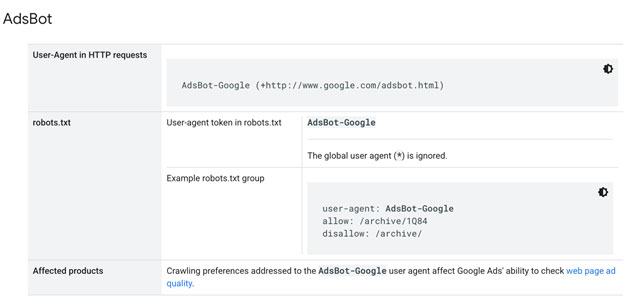
If your landing page is a client-side-rendered or single-page application, the initial HTML may contain little more than an empty framework. Important content (including the product name, price, availability, page copy, and navigation) is invisible to AdsBot-Google. It only appears after JavaScript runs.
That basically means the page your team tests in a browser isn’t always the page AdsBot receives. When AdsBot can’t access the JS content reliably, it may interpret the destination as:
- Unavailable or broken.
- Inconsistent with the ad or product feed.
- Missing important product information.
- Too thin to provide a strong landing page experience.
That is why Google Ads may give an error warning even though it loads normally for users.
For enterprise advertisers, the problem is rarely limited to one URL. The same rendering setup may be used across hundreds of campaign landing pages, product listings, markets, and languages. One technical JS rendering gap can consequently produce Google Ads crawl errors and disapproved Google Shopping ads at scale.
The Two Main Types of Google Ads Errors
Google Ads errors generally fall into two groups, depending on which Google system is evaluating the page and what it is trying to verify:
- AdsBot landing page errors and quality signals.
- Google Shopping and Merchant Center errors.
We make the distinction between the two types because the same warning can have several possible causes.
Google Ads Error Group 1: AdsBot Landing Page Errors and Quality Signals
These issues appear in the Google Ads interface and generally trace back to whether AdsBot-Google can fetch, read, and evaluate the landing page. Google groups many of the direct errors under its Destination Requirements policy.
| Google Ads Error Message | What It Means | Rendering-Related? |
|---|---|---|
| Destination not working | AdsBot cannot reliably fetch or interpret the page. Google’s policy covers destinations that do not function or are configured incorrectly, but on JavaScript sites, the error is often triggered by empty initial HTML or content that only appears after scripts run. | Often |
| Destination not crawlable | Google cannot crawl the page to assess it. AdsBot may be blocked, or the page may return no usable HTML when fetched. | Often |
| Destination not accessible | AdsBot cannot reach the page from its crawling environment. Common causes include 403 or 404 responses, robots.txt rules, firewall settings, CDN configurations, or bot-protection tools. | Sometimes |
| Poor landing page experience | Google’s systems cannot clearly determine what the page contains or offers. Important headings, page content, navigation, or metadata may not be available when the page is fetched. | Often |
| Low Quality Score | Landing page experience is one of the factors that contributes to Quality Score. If AdsBot reads the page inconsistently, that component may suffer even when the ad copy and targeting are strong. | Sometimes |
The Error Misdiagnosed Most Often: “Destination Not Accessible”
“Destination not accessible” is the error teams most often misread as a JavaScript rendering failure.
In many cases, it is an access problem instead. AdsBot is being blocked before it reaches the page, so changing the JavaScript will not solve it.
Google suggests the following places as the first you should check:
- 403 and 404 responses.
- Robots.txt rules.
- Firewall or CDN configurations.
- Bot-protection challenges blocking AdsBot-Google.
Confirm that AdsBot can access the page before investigating how the content renders. It prevents teams from spending an entire debugging cycle fixing the wrong layer.
The broader theme across this group is that Google is describing the symptom it observed, not the underlying cause. “Destination not working” does not necessarily mean your website was down. It means AdsBot did not receive what it needed at the moment it evaluated the page.
Learn how these crawl issues can affect landing page experience: How to Fix Disapproved Google Ads.
Google Ads Error Group 2: Google Shopping and Merchant Center Errors
Google Shopping errors work differently from AdsBot landing page errors.
Instead of assessing whether a landing page provides an acceptable ad experience, the Merchant Center crawler verifies the product information on the page. It reads details such as price, availability, and structured data, then compares them with the information submitted in your product feed.
When those values do not match, the product may be disapproved.
| Google Shopping Error | What It Means | Rendering-Related? |
|---|---|---|
| Mismatched value (page crawl) [price] | The price Google reads on the landing page does not match the price submitted in the product feed. | Frequently |
| Availability mismatch | The availability shown in the page content or structured data does not match the value in the feed. | Frequently |
| Missing or incomplete product data | Google cannot find the product information or structured data it expects on the page. | Frequently |
| Intermittent product disapprovals | The crawler may be receiving different values across separate crawls because the page renders inconsistently or a cached version is outdated. | Often |
Many of these disapprovals look like feed problems but begin at the rendering layer.
If price, availability, or structured data is injected by JavaScript after the initial page response, the crawler may receive the pre-render state. It sees no price, an outdated price, or incomplete product data—even when the live page and feed appear to agree when checked by a person.
Mismatched Value (Page Crawl) [Price]
Google disapproves the product because the price it reads on the landing page does not match the price attribute in the feed. The values in the HTML available to the crawler need to match the feed exactly.
These 2 features make this error difficult to diagnose:
- It can appear intermittent: Google automatically recrawls disapproved products, so a listing may move between approved and disapproved as the crawler encounters different render states.
- The price displayed to shoppers is usually correct: that sends teams into the product feed looking for an error that may not exist there.
When the visible price and feed match, the next question should be: What price is present in the HTML Google receives?
Other Google Ads Issues: Availability and Structured Data Mismatches
Google uses structured data, including schema.org and JSON-LD markup, to verify product attributes such as price and availability. If that markup is added client-side and is not available when the crawler fetches the page, Google may receive missing or inconsistent product information.
The result can include:
- Availability mismatches.
- Incomplete product listings.
- Missing product attributes.
- Disapprovals that point to the feed, even though it’s accurate.
The Stale-Cache Problem for Sites Already Using JavaScript Prerendering
JS prerendering with a tool like Prerender.io caches rendered pages for a period determined by your settings. If a product’s price or availability changes on the live site while the cached snapshot still contains the previous value, Google may read the stale version and report a mismatch.
The fix is to recache the product page so that the rendered HTML contains the current price and availability.
The most reliable approach is to connect Prerender.io’s /recache API endpoint to the same event that updates the product data. When a price or inventory value changes, trigger a fresh recache immediately rather than waiting for the next scheduled cache refresh.
Related: Caching in JavaScript and How it Affects SEO Performance
How Will I Know if a Google Ads Error is Rendering-Related?
Every Google Ads error message we’ve discussed can have more than one cause. “Destination not working” might be a rendering issue, or it could be an actual server outage. A price mismatch might come from a stale render, but it could also be a real product feed error.
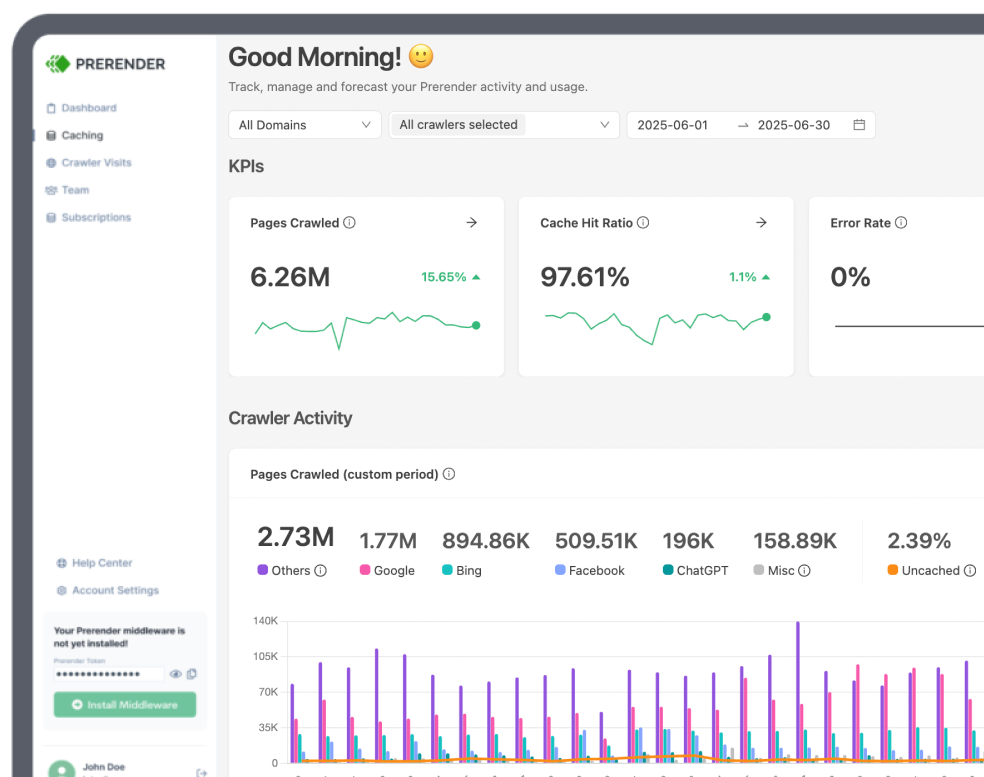
Before rewriting copy or auditing every item in the feed, identify which layer is failing. Google’s error message tells you what its system observed. The response code in your Prerender.io dashboard helps you identify where the underlying failure occurred.
| What You See | Likely Cause | Will a JS Rendering Fix Help? |
|---|---|---|
| 4xx response, including 401, 403, 404, 409, 410, 422, or 429 | Access or configuration issue. The crawler cannot reach the page successfully. | No. Fix the authentication wall, firewall or CDN rule, bot-protection challenge, missing page, or request limit. |
| 5xx response, including 500, 502, 503, or 504 | Rendering or upstream failure. The page could not be produced successfully. | Often. Investigate the render and any API or service it depends on. |
| 200 response, but the page is still disapproved | The page is reachable, but important content, structured data, or current product values may be missing. | Sometimes. Inspect the returned HTML and check for stale cache data. |
| Clean render and matching content, but the error remains | The problem is more likely related to policy, billing, ad configuration, or the product feed itself. | No. Rendering is probably not the cause. |
A 200 response only confirms that Google received a page. It does not confirm that the page contained the price, availability, copy, or structured data the crawler needed.
The Google Ads Rendering Error to Look Out For: A 504 Response
A 504 is the status code that most often points toward a rendering timeout rather than an access block.
Common causes include:
- The page returning an empty HTML framework.
- JavaScript errors preventing content from appearing.
- Failed API calls during the render
- Slow third-party dependencies
- A render taking longer than the configured timeout.
Prerender.io’s default rendering timeout is 20 seconds and can be increased to 60 seconds under Advanced Settings. If a product page depends on slow API calls to populate its price or availability, the timeout is one of the first settings to inspect.
The Google Ads Error Triage Rule
Read the status code before forming a theory about the Google Ads error. We have seen teams spend days rewriting ad copy in response to a “poor landing page experience” alert, only to find that AdsBot was receiving a 403 because of a firewall rule.
The response code usually tells you where to begin:
- A 4xx sends you to the access and configuration layer.
- A 5xx sends you to the rendering process and its dependencies.
- A 200 with missing or incorrect content sends you to the HTML, structured data, or cache.
- A clean render with matching data sends you back to policy, ad configuration, or the feed.
These are different problems that may need to be handled by different teams. The status code helps you involve the right one first. For a closer look at how a crawler request moves from the initial fetch to fully rendered HTML, see our troubleshooting guide.
How Client-Side Rendering Impacts Google Tag Manager (GTM) Tracking
Landing page disapprovals are only the most visible symptom of rendering gaps. Client-side execution delays also silently degrade campaign tracking and attribution accuracy for enterprise PPC teams.
When Single-Page Applications (SPAs) defer page loads to client-side scripts, Google Tag Manager (GTM) and dynamic remarketing scripts often suffer from:
- Incomplete retargeting audiences: if product details (like product ID or price) take too long to load, your tracking tags fire empty. Google won’t know which product the user viewed, making dynamic retargeting ads far less effective.
- False “broken tracking” warnings: Google regularly sends automated bots to test if your conversion tags work. If the bot inspects a page before your JavaScript finishes loading, it assumes your tags are missing and flags your account with tracking errors.
- Lost conversion data: if a user clicks your ad and bounces quickly before your page scripts finish running, the tracking pixel never fires. You pay for the ad click, but lose out on the conversion data.
Pre-rendering ensures your tracking tags and product data are ready immediately when the page opens, keeping your tracking accurate and account health green.
Why Google Ads Errors Get Worse at Enterprise Scale
On a small website, a rendering issue may affect one landing page and be noticed quickly. On a large JavaScript site, the same problem repeats across every URL built from the same templates and rendering logic. It can affect hundreds of campaign pages, thousands of product listings, and every locale or language variation.
Teams managing several accounts through a Google Ads Manager account (MCC) or reviewing changes in Google Ads Editor may see errors spread across campaigns even though nothing obvious has changed in the copy or feed.
What changed is often the page state the crawler encountered when it fetched each URL. The problem is not necessarily hundreds of separate errors; it may be one rendering behavior repeating hundreds of times.
Related: Why SSR Alone Doesn’t Solve Enterprise SEO Problems
How On Fixed Google Ads Errors Caused by JavaScript Rendering
Ahead of a major frontend update in 2023, global sportswear brand On began experiencing problems across its digital marketing ecosystem. Its JavaScript-heavy pages were not rendering reliably for crawlers, contributing to:
- Continuous disapprovals across Google Shopping, display, and video advertising
- Google indexing issues.
- Broken social media previews.
What initially looked like several unrelated channel problems had the same underlying cause: crawlers couldn’t consistently read the content on On’s JavaScript pages.
On considered building server-side rendering in-house, but the project would have required months of development, additional infrastructure, and ongoing engineering support. Instead, the company integrated Prerender.io without rebuilding its frontend architecture.
Within days, visibility stabilized across key search and marketing channels. According to On, its Google Ads began running smoothly again, campaign delivery normalized, impression share returned, and spend could scale predictably. The company estimates that resolving the ad issues protected up to $1 million in annual revenue.
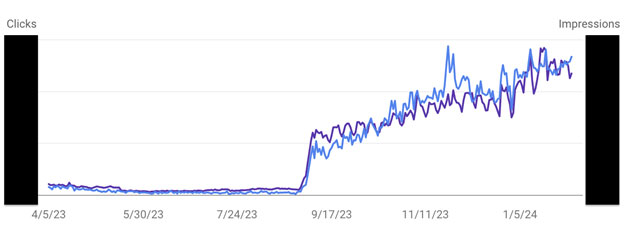
On’s experience illustrates why Google Ads errors at scale should not always be treated as isolated campaign or feed problems. When disapprovals appear across paid advertising, Shopping, organic search, and social platforms, the rendering layer is one of the first shared systems to investigate.

Read the full customer story: How On Saves Millions Per Year with Prerender.io
How Prerender.io Fixes Google Ads Crawl Errors at Enterprise Level
Prerender.io gives AdsBot-Google and other crawlers a fully rendered HTML version of each JavaScript page. Shoppers still receive the dynamic site experience, while crawlers immediately receive the landing page copy, prices, availability, structured data, and other content they need to evaluate the URL.
This helps ensure that your Google Ads are approved, your link previews display properly, and your content shows up accurately in AI search results.
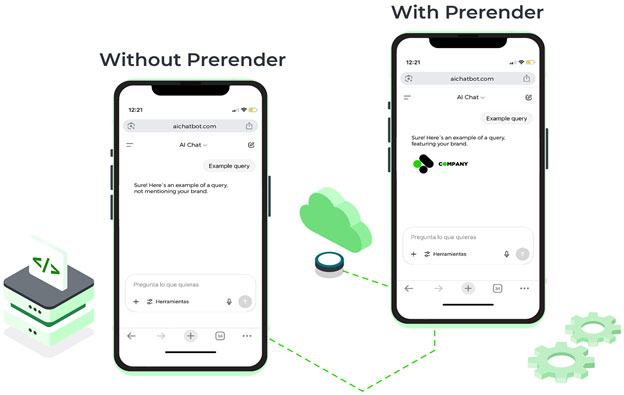
This fixes the rendering problem behind the Google Ads errors we’ve discussed. Because Prerender.io works at the rendering layer, the fix applies across pages built with the same JavaScript architecture. Enterprise teams can address the underlying issue across campaign URLs, product catalogs, markets, and languages instead of troubleshooting each disapproved ad individually — and without the budget waste that comes from campaigns running against landing pages crawlers can’t evaluate correctly.
Fix the Google Ads Crawl Error, Not Just the Disapproval
A Google Ads error message tells you what Google encountered, not necessarily what caused it. Check whether AdsBot can access the page, inspect the HTML it receives, and confirm that important content is present before rewriting ads or rebuilding product feeds.
When JavaScript rendering is the problem, Prerender.io helps resolve it across every affected page, not one disapproval at a time.
Start your 30-day free Prerender.io trial to see what Google’s crawlers receive from your landing pages and find out whether rendering is contributing to your Google Ads errors.
FAQs About The Types and Causes of Google Ads Errors
1. Why does Google Ads say “destination not working” when the page loads fine in my browser?
Google Ads often shows a “destination not working error” error for JavaScript sites because AdsBot-Google doesn’t render your page the way your browser does. It evaluates the HTML available the moment it fetches the page and doesn’t wait for long-running JavaScript, so if your content loads a beat later, the crawler has already judged the page as thin or broken.
2. What does the “Mismatched value (page crawl) [price]” Google Shopping ad error mean?
Google read a price on your landing page that doesn’t match the price attribute in your feed. According to Google’s Merchant Center documentation, the crawler reads the price from the returned HTML, and if that price is injected by JavaScript after the page loads, it triggers a mismatch even when your feed and live site actually agree. Serving crawlers fully rendered HTML is what resolves this class of Google Shopping ad errors.
3. How do I know if a Google Ads error is a rendering-related problem?
Check the status code the crawler receives in your Prerender.io dashboard. A 4xx means an access or configuration issue (often a sign that Google Ads AdsBot cannot access the page at all), a 5xx (especially 504) means the render failed, and a clean 200 that’s still disapproved points to content, structured data, or a stale cache rather than rendering.
4. Why did my product get disapproved right after I fixed the price?
If you use prerendering, your cached snapshot may still hold the old price, so the crawler reads the stale cache rather than your live site. Recache the product page, ideally by tying a /recache API call to the same event that updates the price, so the cached version and your live data stay in sync.
5. Does AdsBot render JavaScript?
AdsBot cannot render JavaScript the way a real user’s browser can, and it prioritizes what’s immediately available at fetch time. This is why a Google Ads error for a single-page application is so common: if your landing pages depend on client-side rendering to show their main content, that content is often invisible to the crawler.