Your new website is live: the domain resolves, the pages load, and the product team signed off. Yet when you search for it, nothing appears because your website needs to be indexed by Google for the first time.
After the hard work of launching a site, most teams focus on content or design improvements, not on indexing. Some teams don’t even know how to index a website for the first time, so this process easily slips through the cracks. Not because it doesn’t matter, but because it tends to only come up when performance is poor, or content isn’t visible on Google.
In this blog, we will speak about the process of getting indexed on a brand-new site. This applies if you’ve migrated frameworks, rolled out a microsite, or replatformed your marketing tech stack.
How Google Finds and Indexes a New Website
Before your site can appear in search results, Google processes it in a sequence of five stages.
1. Discovery
Discovery happens when Google first becomes aware of your URL. This usually happens through:
- External links from other websites.
- XML sitemaps submitted via Google Search Console.
- Previously known URLs associated with your domain.
- Internal links within your site.
2. Crawling
Once discovered, web crawlers (like Googlebot and OpenAI’s crawlers) request the page. Crawling retrieves the raw HTML and identifies links to other pages. If your site has no inbound links and no submitted sitemap, discovery and crawling may take longer. While crawling is a crucial part of the indexing process, it alone does not guarantee indexing.
Crawl budget is another key factor here. Search engines allocate a finite number of pages they’ll crawl on your site within a given timeframe; once that budget is exhausted, Googlebot stops, regardless of how many pages remain unvisited.
For JavaScript-heavy sites, this becomes a serious problem: rendering JS takes longer and requires more processing than static HTML, burning through your crawl budget faster and leaving pages undiscovered or deprioritized for indexing. Unrendered pages also hide internal links, meaning crawlers can’t follow them. Managing your crawl budget so it’s spent on valuable, fully renderable pages is one of the most impactful things you can do for indexation.
Read: 5 Ways to Maximize Crawling and Get Indexed Faster.
3. Rendering
After crawling, Google determines what the page is actually about. If your website relies on JavaScript to load content dynamically, Google may need to render the page before it can fully evaluate it. While Google can render JavaScript, it can fail or be incomplete. Rendering allows Google to see the final version of the content, not just the initial HTML response. If key elements only appear after scripts execute, indexing depends on successful rendering. If rendering fails or is incomplete, Google may not see the page the way users do.
Related: Why Does JavaScript Complicate My Indexing Performance?
4. Indexing
After crawling and rendering, Google evaluates the page’s content, structure, metadata, and overall quality. If the page meets its indexing criteria, it is added to Google’s index: a massive, distributed database of searchable documents. Only once a page reaches the indexing state can it rank. Essentially, then it will appear on Google SERPs for a particular keyword or topic.
If a page is crawled but not indexed, it may appear in Search Console as “Discovered” or “Crawled – currently not indexed.” In those cases, Google has seen the URL but has chosen not to store it.
In simple terms, every website moves through the same progression:
Discovery → Crawling → Rendering → Indexing → Ranking.
If your website isn’t showing on Google, something in that progression is breaking. Now let’s walk through the practical steps to make sure your site moves cleanly from discovery to indexing.
Step-by-Step: How to Get Your Website Indexed on Google
If you’re trying to make your website visible on Google for the first time, follow these steps in order.
Step 1: Create and Verify Google Search Console
Register your domain in Google Search Console.
- Add your domain as a property.
- Verify ownership (via DNS, HTML file upload, or Tag Manager).
- Confirm that your pages are accessible.
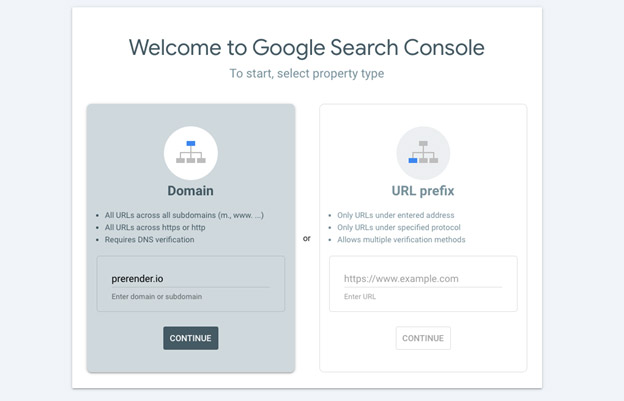
Verification doesn’t automatically index your website, but it gives you visibility into crawl activity, indexing status, and potential technical issues. It also allows you to submit sitemaps and request indexing directly.
Step 2: Submit Your Sitemap
A sitemap is a structured file that lists the URLs you want crawled and indexed.
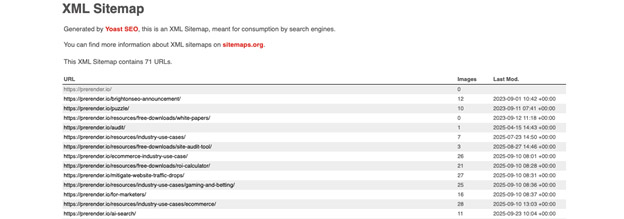
It helps Google:
- Discover new pages more quickly.
- Understand your site’s structure.
- Identify priority URLs.
To submit your sitemap:
- Locate it (commonly
yourdomain.com/sitemap.xml). - In Search Console, navigate to Sitemaps.
- Paste the URL and click Submit.
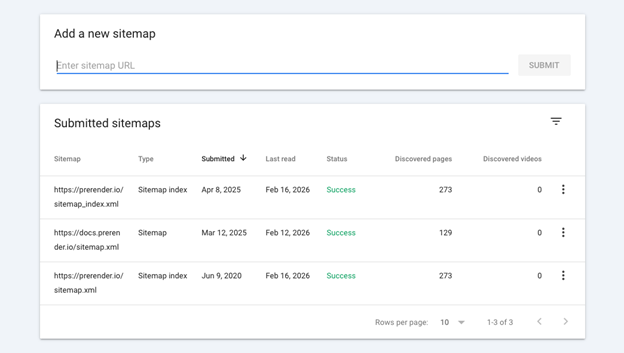
Submitting a sitemap does not guarantee indexing. But it improves discovery, especially for new domains with limited inbound links.
Step 3: Request Indexing for Key Pages
If you’ve just launched and want priority pages indexed quickly (homepage, core product pages, documentation, etc.), use the URL Inspection tool in Search Console.
- Paste the page URL into the search bar.
- Review the current indexing status.
- Click Request Indexing.
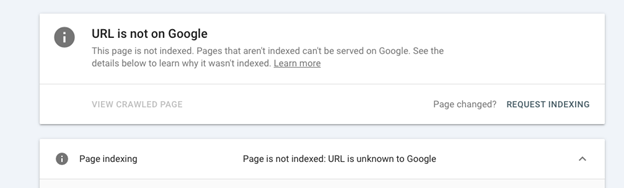
This signals to Google that the page should be re-crawled and evaluated. It’s not immediate, but it’s typically faster than waiting for discovery alone.
Step 4: Check That Your Pages Are Crawlable
If your website is not showing on Google, one of these common blockers may be preventing indexing:
Noindex Tag
If a page includes a noindex directive, Google is explicitly instructed not to store it in the index. Remove the tag from live pages you want indexed.
Robots.txt Disallow
If your robots.txt file blocks access to certain paths, Googlebot cannot crawl those pages. Update the rules to allow crawling where appropriate.
Password Protection
Search engines cannot access gated or login-protected content. Ensure public pages are accessible.
Staging Domain Configuration
If canonical tags or environment settings still point to a staging or development domain, Google may ignore your production URLs. Confirm that your live domain is self-referencing.
Incorrect Canonical Tags
If a page points to another URL as the canonical version, Google may choose not to index it. Ensure canonical tags reflect the intended primary URL.
Related: 12 Reasons Your URLs Get Deindexed by Google and Their Solutions
If you’ve completed these steps and your site still isn’t appearing in search results, the next question is usually timing.
How Long Does Google Take to Index a Site?
Indexing timelines vary depending on your domain history, technical setup, and how easily Google can process your content.
As a general guideline:
- Brand-new domains: anywhere from a few days to several weeks.
- Established, high-authority domains: often within hours to a few days.
- JavaScript-heavy or dynamically rendered sites: unpredictable.
Even if your sitemap is submitted and your pages are crawlable, indexing can still fail at the rendering stage. If that processing step is delayed or incomplete, indexing will slow down.
The Technical Layer: What Happens When Google Crawls JavaScript Content
Up to this point, the process sounds straightforward: Google discovers your page, crawls it, and indexes it.
But for many websites, there’s an additional step.
When Googlebot requests a page, it first receives the raw HTML response from the server. On a static site, that HTML contains the full content (headings, text, links, and metadata), allowing Google to evaluate it immediately. On dynamic sites, however, the initial HTML may be minimal. Visible content is assembled in the browser after JavaScript runs.
That means:
- The primary page content may not exist in the initial HTML response.
- Internal links may only appear after scripts execute.
- Canonical tags and metadata may be injected dynamically.
In those cases, Google must render the page by executing JavaScript before it can evaluate it properly. Rendering does not always happen immediately after crawling. If scripts are complex, blocked, or error-prone, Google may process the page late, partially, or not at all.
From your perspective, the website is live. From Google’s perspective, the page may appear incomplete.
When JS Rendering Becomes the Indexing Bottleneck
If you’ve verified Search Console, submitted your sitemap, removed crawl blockers, and requested indexing, but pages still don’t appear, the issue is often rendering.
For JavaScript-heavy sites, indexing reliability depends on how content is delivered to crawlers. There are three common approaches to solving rendering-related indexing issues:
1. Client-Side Rendering (CSR)
With client-side rendering, content is generated in the browser after JavaScript executes. This is simple from a development perspective, but search engines must render the page before evaluating it. Indexing may be delayed or inconsistent.
2. Server-Side Rendering (SSR)
The server generates fully rendered HTML before sending it to the browser. This ensures search engines receive complete content immediately. However, implementing SSR often requires architectural changes and ongoing infrastructure management.
3. Dynamic Rendering
Dynamic rendering serves a pre-rendered HTML version of the page specifically to search engine crawlers, while users continue to receive the interactive JavaScript experience. This approach improves crawl reliability without requiring a full front-end rebuild.
Read: Explaining the Difference Between Prerendering and Other Rendering Options
For teams that rely on modern JavaScript frameworks but want predictable indexing, dynamic rendering with a tool like Prerender.io provides a practical middle ground.
A Practical Approach to Dynamic Rendering with Prerender.io
Prerender.io implements dynamic rendering at scale. It detects search engine crawlers and serves them a fully rendered HTML snapshot of each page, ensuring Google can crawl and index complete content without relying on client-side execution.
This stabilizes indexing for:
- AI-generated or no-code front-end platforms (such as Lovable).
- React, Vue, Angular, and Next.js applications.
- Headless CMS architectures.
- Single-page applications.
- Sites undergoing framework migrations.
By delivering complete HTML from the start, rendering becomes predictable and no longer depends on when or how JavaScript executes. For teams launching new properties or replatforming existing ones, this creates a reliable indexing foundation without requiring a full front-end rebuild.
Watch the video below to learn how Prerender.io works or explore our pricing options.
FAQs About How to Index Your Website on Google
1. What is the Difference Between Crawling and Indexing?
- Crawling is when Googlebot discovers and retrieves your page.
- Indexing is when Google evaluates and stores that page in its searchable database.
A page can be crawled but not indexed. If you’re comparing crawling vs. indexing to diagnose why your website isn’t showing in Google, indexing is usually where issues appear, especially if rendering fails or quality signals are weak.
2. Why is My Website Not Showing on Google?
If your site isn’t appearing in search results, the indexing process likely broke at one of these stages:
- The page hasn’t been discovered.
- It was crawled but not indexed.
- A noindex tag or robots.txt rule is blocking it.
- Canonical tags point elsewhere.
- JavaScript rendering failed.
3. How Much Does Dynamic Rendering Cost?
Dynamic rendering costs vary depending on traffic volume and crawl frequency. Prerender.io uses a usage-based pricing model with several plan tiers designed to scale with your site’s needs:
- Plans start at $59 per month and include a set number of renders per month.
- Higher tiers (e.g., Growth and Pro) include larger monthly render allowances and more advanced features.
- Additional renders beyond your plan’s quota are billed at a set rate per 1,000 renders.
A “render” refers to a fully rendered version of a page that Prerender.io stores and serves to crawlers. Review Prerender.io’s pricing for more information.
4. How Can I Get My Website Indexed on Google Faster?
Steps to get your website indexed faster include:
- Verifying Google Search Console.
- Submitting a sitemap.
- Requesting indexing via URL Inspection.
- Improving internal linking.
- Ensuring full content exists in the initial HTML.
If content only appears after JavaScript execution, indexing may be delayed until rendering completes.
5. Does Indexing Affect AI Search and AEO Visibility?
Yes, indexing affects AI search visibility as it is the foundation for both traditional search rankings and Answer Engine Optimization. AI systems rely on indexed content as a source layer. If your page is not indexed, it cannot be surfaced in AI tools like ChatGPT, Claude, Gemini, Perplexity, or Google’s AIO.